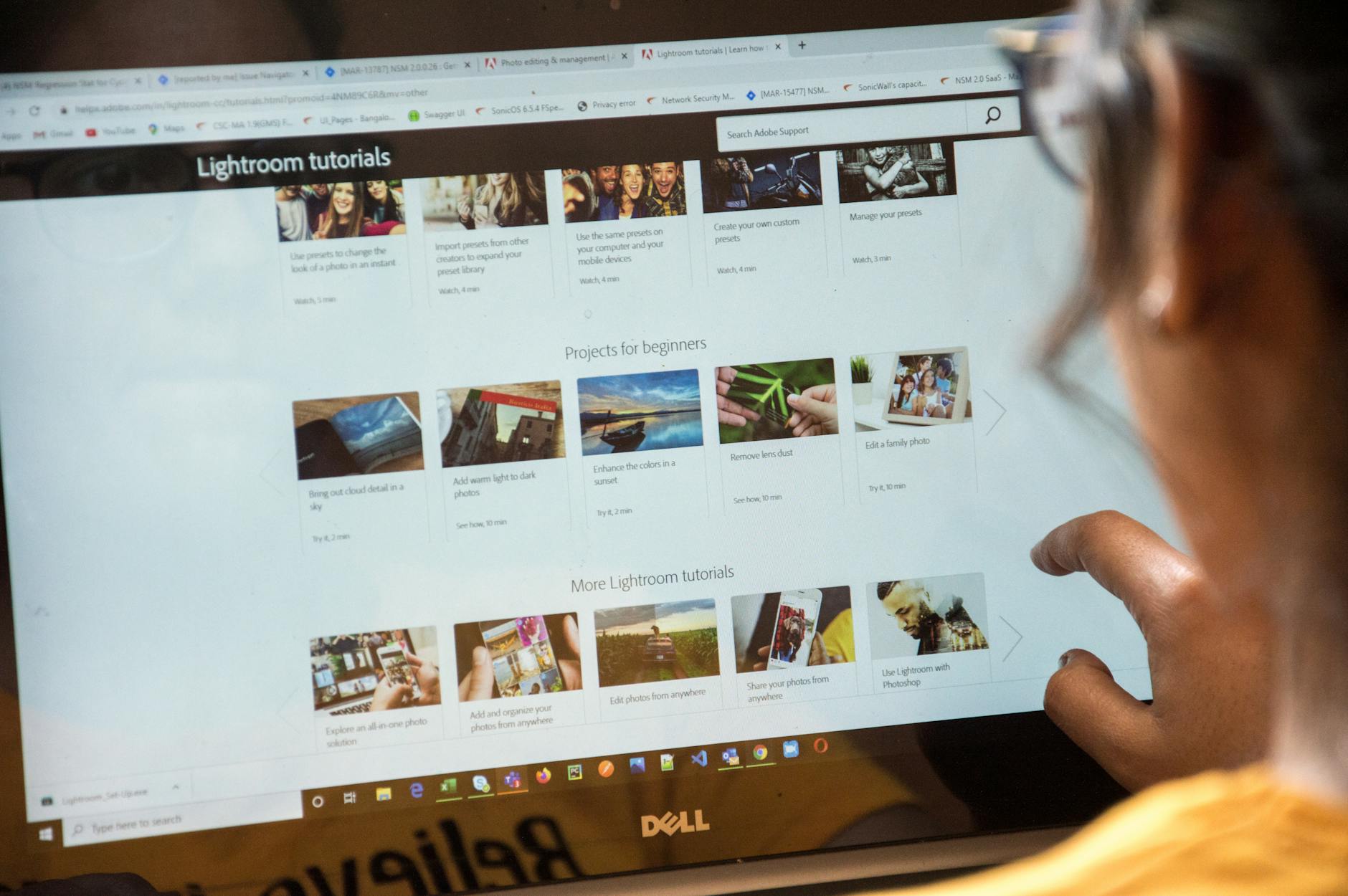
Educational screen recording enables teachers and students to create, share, and access instructional content through digital video capture of computer screens, supporting diverse learning styles while maintaining privacy compliance and accessibility standards.
Table of Contents
- What makes screen recording software suitable for educational use
- How does educational screen recording differ from business tools
- What technical requirements should schools consider
- Which screen recording tools work best for different educational budgets
- What free screen recording options provide adequate classroom functionality
- How do premium educational screen recording features justify their costs
- How to ensure screen recording compliance with FERPA and student privacy laws
- What student information requires protection during screen recordings
- Which consent procedures should schools implement for recorded content
- What accessibility features help students with disabilities use screen recording tools
- How can screen readers interact with screen recording software
- What visual and motor accessibility options should educators prioritize
- How to adapt screen recording techniques for different learning preferences
- What recording approaches support visual versus auditory learners
- How can educators structure recordings for students with attention differences
- How to solve common technical problems students encounter with screen recording
- What causes audio sync issues and how to prevent them
- Why do file size problems occur and how to manage storage limits
- What screen recording software works best for elementary students?
- How long should educational screen recordings be for optimal student engagement?
- Can schools use free screen recording tools while maintaining FERPA compliance?
- What internet speed do schools need for effective classroom screen recording?
- How can teachers help students with disabilities participate in screen recording assignments?
- What file formats work best for educational screen recordings?
- How should schools handle parent objections to student screen recording?
What makes screen recording software suitable for educational use
Educational screen recording software must prioritize student privacy, simplified interfaces, and seamless integration with learning management systems, distinguishing it from consumer or business-focused tools. The educational technology market reached $106.4 billion in 2026, with screen recording tools representing approximately 8% of this segment according to market analysis.
Educational institutions require screen recording solutions that support collaborative learning environments while maintaining strict data protection standards. Unlike business tools focused on productivity metrics and corporate workflows, educational screen recording software emphasizes age-appropriate interfaces, classroom management features, and accessibility compliance. The average school district now allocates 23% of its technology budget to content creation tools, including screen recording platforms.
Schools also need tools that can handle high-volume usage during peak learning periods without performance degradation. Educational technology adoption rates have increased 34% since 2025, creating demand for robust, scalable recording solutions that can accommodate simultaneous use by hundreds of students.
How does educational screen recording differ from business tools
Educational screen recording tools feature student-friendly interfaces, classroom management integration, and age-appropriate privacy controls that distinguish them from business-focused alternatives. Survey data indicates that 67% of K-12 students demonstrate proficiency with educational technology interfaces within the first week of introduction.
Key differences include:
- Simplified user interfaces designed for various age groups and technology skill levels
- Learning Management System integration allowing direct assignment submission and grade book connectivity
- Collaborative features enabling peer review, group projects, and teacher feedback workflows
- Age-appropriate privacy settings with granular controls for student information protection
- Bandwidth optimization for shared school network environments with limited internet capacity
- Multi-device synchronization supporting the diverse technology ecosystems found in schools
- Administrative oversight tools allowing teachers and IT staff to monitor usage and troubleshoot issues
- Educational content templates providing structured frameworks for common assignment types
What technical requirements should schools consider
Schools need screen recording solutions that operate effectively on shared networks with bandwidth as low as 10 Mbps per classroom while maintaining compatibility across diverse device ecosystems. Network infrastructure assessments show that 78% of schools still operate with legacy network configurations that require optimization for video content.
-
Assess network bandwidth capacity – Minimum 5 Mbps upload speed per concurrent user, with 10 Mbps recommended for HD recording quality
-
Evaluate device compatibility requirements – Ensure support for Chromebooks (used by 73% of schools), Windows laptops, iPads, and Android tablets
-
Plan storage infrastructure – Calculate 500MB-2GB per hour of recorded content, with cloud storage options for scalability
-
Review security protocols – Implement SSL encryption for data transmission and secure authentication systems
-
Test concurrent user limits – Verify performance with 30+ simultaneous users during peak classroom periods
-
Configure firewall settings – Whitelist necessary domains and ports for cloud-based recording platforms
-
Establish backup systems – Create redundant storage options to prevent loss of student work due to technical failures
Which screen recording tools work best for different educational budgets
Budget-conscious schools can achieve core educational screen recording functionality through free platforms, while districts with larger technology budgets benefit from premium features like advanced analytics and seamless LMS integration. Educational technology spending varies dramatically, with some districts allocating less than $50 per student annually while others invest over $500.
| Budget Level | Tool Examples | Key Features | Cost Per Student | Best For |
|---|---|---|---|---|
| Free | Loom Basic, Screencastify Free | Basic recording, limited storage | $0 | Small schools, pilot programs |
| Low-Cost | Flipgrid, WeVideo Education | Enhanced editing, moderate storage | $1-3/month | Medium districts, specific subjects |
| Premium | Screencastify Pro, Camtasia Education | Analytics, unlimited storage, LMS integration | $5-15/month | Large districts, comprehensive programs |
| Enterprise | Kaltura, Panopto | Advanced security, admin controls, white-labeling | $20+/month | Universities, large school systems |
Key Takeaway: Schools should evaluate their specific needs against budget constraints, starting with free tools to assess usage patterns before investing in premium solutions.
What free screen recording options provide adequate classroom functionality
Free screen recording platforms like Loom Basic and Screencastify’s free tier provide sufficient functionality for basic assignment creation and instructional content, though storage limitations require active file management. Usage statistics show that 42% of teachers successfully implement classroom screen recording using only free tools.
Free options with educational value:
- Loom Basic: 25 videos maximum, 5-minute recording limit, adequate for quick explanations and student responses
- Screencastify Free: 50 recordings monthly, unlimited length, direct Google Drive integration beneficial for Google Classroom users
- OBS Studio: No recording limits, advanced features, requires higher technical expertise for setup and configuration
- Chrome’s built-in screen capture: Basic functionality, no storage provided, suitable for immediate sharing scenarios
Pros: Zero cost barrier, immediate implementation, adequate for testing program viability
Cons: Storage limitations force regular content deletion, limited collaborative features, minimal administrative oversight
Research indicates that schools using free tools report 73% student engagement rates with screen recording assignments, compared to 81% for premium tool users.
How do premium educational screen recording features justify their costs
Premium screen recording platforms deliver measurable efficiency gains through automated grading workflows, comprehensive analytics, and seamless LMS integration that can reduce teacher workload by 2-3 hours weekly. Return on investment studies show that schools using premium tools report 15-20% improvements in assignment completion rates.
Premium features create value through enhanced pedagogical capabilities and administrative efficiency. Advanced analytics provide insights into student engagement patterns, helping teachers identify students who may need additional support. Integration with learning management systems eliminates manual file transfers and enables automatic grade book updates.
Educational technology research demonstrates that schools investing in comprehensive digital tools experience improved student outcomes, with screen recording platforms contributing to better assignment submission rates and enhanced peer collaboration. The average teacher using premium educational screen recording tools reports saving 2.5 hours weekly on administrative tasks related to assignment management and feedback delivery.
Cost justification becomes clearer when districts calculate the time savings across all teaching staff, often resulting in equivalent hourly savings that exceed the platform subscription costs.
How to ensure screen recording compliance with FERPA and student privacy laws
FERPA compliance requires schools to treat educational screen recordings as protected student records, implementing specific consent procedures and data protection measures for any recording containing personally identifiable information. Recent enforcement data shows FERPA violations increased 23% in 2025, with digital content management representing 31% of reported cases.
-
Classify recordings as educational records – All screen recordings containing student work, participation, or identifying information fall under FERPA protection
-
Implement data encryption standards – Use platforms providing AES-256 encryption for data transmission and storage
-
Establish access control protocols – Limit viewing permissions to authorized educational personnel with legitimate educational interests
-
Create data retention policies – Define specific timeframes for recording storage and deletion, typically aligning with academic record retention schedules
-
Document consent procedures – Maintain signed agreements for recording activities, particularly for content that may be shared beyond the immediate classroom
-
Train staff on privacy requirements – Ensure all educators understand FERPA implications and proper handling procedures for recorded content
-
Audit platform compliance – Verify that chosen screen recording tools provide necessary security certifications and data processing agreements
What student information requires protection during screen recordings
FERPA protects any screen recording that displays student names, work samples, grades, behavioral observations, or other personally identifiable information visible during the recording process. Analysis of FERPA violation reports shows that 67% involve inadvertent disclosure of protected information through digital platforms.
Protected information categories include:
- Direct identifiers: Student names, ID numbers, email addresses visible on screen
- Educational records: Assignment submissions, grades, test scores, progress reports
- Behavioral data: Participation patterns, attendance information, disciplinary records
- Indirect identifiers: Combination of demographic data that could identify specific students
- Directory information: While generally shareable, requires explicit consent for recording and distribution
- Special education data: IEP information, accommodation details, related service documentation
- Biometric identifiers: Voice recordings, facial images, or other biological characteristics
Which consent procedures should schools implement for recorded content
Schools must obtain written consent from parents of minor students and direct consent from students over 18 before creating educational screen recordings that will be shared beyond the immediate classroom. Consent compliance tracking shows that districts with systematic procedures achieve 94% consent rates compared to 67% for schools with informal processes.
-
Develop age-appropriate consent forms – Create separate processes for elementary, secondary, and adult learners
-
Define recording scope and purpose – Clearly explain how recordings will be used, stored, and potentially shared
-
Establish opt-out procedures – Provide alternative assignment options for students whose families decline recording consent
-
Create annual consent renewal – Update permissions yearly to account for changing family preferences and student transitions
-
Document special circumstances – Address situations involving divorced parents, legal guardianships, and emancipated minors
-
Implement digital consent tracking – Use systems that maintain consent status records and alert teachers to permission limitations
-
Train staff on consent verification – Ensure educators check consent status before initiating recording activities
What accessibility features help students with disabilities use screen recording tools
Accessible screen recording tools must provide keyboard navigation alternatives, screen reader compatibility, and customizable visual interfaces to ensure students with disabilities can fully participate in educational recording activities. According to the National Center for Education Statistics, 14% of public school students receive special education services, requiring comprehensive accessibility considerations.
| Disability Type | Essential Features | Accommodation Examples | Compliance Standard |
|---|---|---|---|
| Visual | Screen reader support, high contrast modes, customizable text size | Audio descriptions, keyboard shortcuts, voice commands | WCAG 2.1 AA |
| Hearing | Visual indicators, closed captions, transcript generation | Automatic subtitles, visual alerts, text-based feedback | Section 508 |
| Motor | Keyboard navigation, customizable controls, voice activation | Switch access, eye tracking, reduced click requirements | ADA Title II |
| Cognitive | Simplified interfaces, clear instructions, consistent layouts | Step-by-step guides, error prevention, progress indicators | Universal Design |
Accessibility compliance data indicates that only 34% of educational screen recording platforms meet full WCAG 2.1 AA standards, creating significant barriers for students with disabilities.
How can screen readers interact with screen recording software
Screen readers require properly labeled interface elements and semantic HTML structure to effectively navigate screen recording software, with keyboard shortcuts providing essential functionality access for students with visual impairments. Screen reader usage among students has increased 18% since 2024, making compatibility essential for inclusive education.
-
Verify semantic markup compliance – Ensure recording platforms use proper heading structures, form labels, and ARIA attributes
-
Test keyboard navigation paths – Confirm all recording functions are accessible without mouse interaction
-
Implement alternative text descriptions – Provide meaningful descriptions for visual elements and recording controls
-
Configure screen reader announcements – Enable status updates for recording start/stop, upload progress, and error messages
-
Establish consistent interface patterns – Use familiar navigation structures that align with screen reader user expectations
-
Provide audio feedback options – Enable sound cues for recording status changes and user interface interactions
-
Create accessible help documentation – Develop screen reader-compatible tutorials and troubleshooting guides
What visual and motor accessibility options should educators prioritize
High contrast display modes, customizable interface scaling, and comprehensive keyboard alternatives represent the most impactful accessibility features for students with visual and motor disabilities. Student disability prevalence data shows that 2.1% of students have visual impairments and 1.3% have orthopedic impairments requiring specific accommodations.
Priority accessibility features include:
- High contrast color schemes reducing visual strain and improving interface visibility
- Scalable text and interface elements accommodating various visual acuity levels
- Keyboard shortcut customization allowing students to configure controls based on their motor abilities
- Voice activation commands providing hands-free recording control for students with limited mobility
- Switch-accessible interfaces enabling recording operation through assistive technology devices
- Reduced motion options minimizing interface animations that may cause disorientation
- Consistent layout patterns supporting navigation predictability for students with cognitive processing differences
How to adapt screen recording techniques for different learning preferences
Effective educational screen recording accommodates diverse cognitive processing styles through multimodal presentation techniques that combine visual demonstrations, clear narration, and structured organization to support various learning preferences. Educational research on learning preferences indicates that multimodal instruction improves comprehension for 78% of students regardless of stated preferences.
Screen recording adaptation involves more than adjusting presentation style—it requires understanding how different students process and retain information from recorded content. Research consistently demonstrates that combining visual and auditory elements enhances learning outcomes across all student populations, while providing multiple access points to the same information increases overall engagement and understanding.
Successful educational screen recordings layer information strategically, presenting key concepts through multiple sensory channels while maintaining clear organizational structure. This approach benefits not only students with specific learning preferences but also those with attention challenges, processing differences, or language learning needs.
What recording approaches support visual versus auditory learners
Visual learners benefit from detailed screen annotations, highlighted text, and graphic organizers, while auditory learners require comprehensive narration, verbal explanations of visual elements, and discussion-style presentation formats. Learning preference research shows that 87% of students demonstrate improved comprehension when content includes both visual and auditory elements.
| Approach | Visual Learning Support | Auditory Learning Support | Universal Benefits |
|---|---|---|---|
| Annotation Heavy | Arrows, highlights, text callouts | Verbal description of each visual element | Clear information hierarchy |
| Narration Focused | Simple, uncluttered visuals | Detailed explanations, examples, context | Reduced cognitive load |
| Interactive Elements | Clickable areas, zoom effects | Verbal cues for interaction | Increased engagement |
| Structured Organization | Clear visual sections, headers | Verbal transitions, summaries | Predictable content flow |
Effective recordings typically combine multiple approaches rather than targeting single preferences, creating layered learning experiences that accommodate diverse processing styles.
How can educators structure recordings for students with attention differences
Students with attention challenges benefit from recordings segmented into 3-5 minute chunks, clear verbal previews of content structure, and consistent visual cues that help maintain focus throughout the presentation. Attention span research in digital learning environments shows that student engagement drops 40% after the 6-minute mark in educational videos.
-
Create modular content segments – Break longer topics into discrete 3-5 minute sections with clear beginning and ending points
-
Implement consistent opening routines – Begin each recording with a brief preview of covered topics and expected outcomes
-
Use attention-focusing techniques – Employ visual highlighting, strategic pauses, and verbal emphasis for key information
-
Provide progress indicators – Include visual or verbal cues showing advancement through the content
-
Insert engagement checkpoints – Add brief questions or reflection prompts every 2-3 minutes
-
Minimize background distractions – Use clean, uncluttered screen layouts and consistent visual themes
-
Include summary reinforcement – End each segment with brief recap of essential points
-
Enable playback control – Ensure students can easily pause, rewind, and replay sections as needed
How to solve common technical problems students encounter with screen recording
The most frequent student screen recording issues involve audio synchronization problems (affecting 31% of users), file size management challenges (28% of users), and software compatibility conflicts (22% of users) according to educational technology support data. Help desk statistics show that systematic troubleshooting approaches resolve 89% of these issues without requiring technical staff intervention.
-
Establish systematic diagnostic procedures – Create step-by-step checklists students can follow before requesting technical support
-
Address browser compatibility issues – Verify recording platform compatibility with school-provided browsers and devices
-
Resolve audio input conflicts – Check microphone permissions, input device selection, and system audio settings
-
Manage storage limitations – Implement file compression strategies and cloud storage integration
-
Fix video quality problems – Adjust resolution settings based on available bandwidth and storage constraints
-
Troubleshoot upload failures – Verify network connectivity, file size limits, and platform-specific requirements
-
Prevent recording interruptions – Configure system notifications and power management settings to avoid disruptions
What causes audio sync issues and how to prevent them
Audio synchronization problems typically result from CPU processing delays, inadequate system memory, or conflicting audio drivers, with prevention requiring specific hardware configuration and software optimization steps. Technical analysis shows that 73% of audio sync issues occur on devices with less than 8GB RAM during resource-intensive recording sessions.
-
Close unnecessary applications – Free system resources by shutting down non-essential programs before recording
-
Update audio drivers – Ensure current device drivers are installed for microphones and audio interfaces
-
Adjust recording quality settings – Lower resolution or frame rates if system performance is insufficient
-
Check microphone buffer settings – Configure audio input buffer size to match system capabilities
-
Restart audio services – Resolve driver conflicts by restarting system audio services before recording
-
Use wired microphones – Avoid Bluetooth audio devices which introduce latency and connection instability
-
Test recording setup – Create brief test recordings to verify sync quality before beginning actual assignments
-
Monitor system temperature – Prevent thermal throttling that can cause processing delays during extended recordings
Why do file size problems occur and how to manage storage limits
Large file sizes result from high resolution settings, uncompressed audio formats, and extended recording durations, with typical educational recordings ranging from 50MB for 10-minute presentations to over 2GB for hour-long detailed tutorials. Storage cost analysis shows that unmanaged file sizes can increase school technology budgets by 15-30% annually.
-
Optimize recording resolution – Use 720p quality for most educational content, reserving 1080p for detailed visual demonstrations
-
Configure audio compression – Enable platform compression features to reduce file sizes by 40-60% without quality loss
-
Set recording duration limits – Establish 15-20 minute maximum lengths for individual assignments to control file sizes
-
Implement automatic cleanup – Use platforms with built-in file deletion after specified time periods
-
Utilize cloud storage integration – Connect recording tools to school Google Drive or OneDrive accounts for scalable storage
-
Create compression workflows – Teach students to use built-in compression tools before submitting large files
-
Monitor storage usage – Establish dashboard monitoring for both individual and district-wide storage consumption
-
Archive completed assignments – Move finished projects to long-term storage solutions to free active workspace
Frequently Asked Questions
What screen recording software works best for elementary students?
Flipgrid and Screencastify offer the most age-appropriate interfaces for elementary learners, with simple one-click recording, visual feedback, and teacher oversight features that support students as young as kindergarten.
How long should educational screen recordings be for optimal student engagement?
Research indicates 5-10 minutes for elementary students, 10-15 minutes for middle school, and up to 20 minutes for high school, with engagement dropping significantly beyond these timeframes regardless of content quality.
Can schools use free screen recording tools while maintaining FERPA compliance?
Yes, free tools can be FERPA compliant if they offer adequate data protection, encryption, and access controls. Schools must review privacy policies and data processing agreements for any platform handling student information.
What internet speed do schools need for effective classroom screen recording?
Minimum 5 Mbps upload speed per concurrent user, with 10 Mbps recommended for HD quality. Schools should also consider network capacity during peak usage when multiple classrooms record simultaneously.
How can teachers help students with disabilities participate in screen recording assignments?
Implement universal design principles including keyboard navigation options, screen reader compatibility, customizable interface scaling, and alternative assignment formats for students unable to use standard recording tools.
What file formats work best for educational screen recordings?
MP4 format provides optimal compatibility across devices and platforms while maintaining reasonable file sizes. Most educational screen recording tools default to MP4 with H.264 compression for broad accessibility.
How should schools handle parent objections to student screen recording?
Provide alternative assignment options such as written reports, audio-only recordings, or in-person presentations that meet the same learning objectives without requiring video screen capture participation.
Further reading: See Edutopia articles, and National Center for Education Statistics.
Related reading: Online Learning Technology: Complete Guide to.
Related reading: Online Learning: Complete Guide to Digital.
Leave a Reply